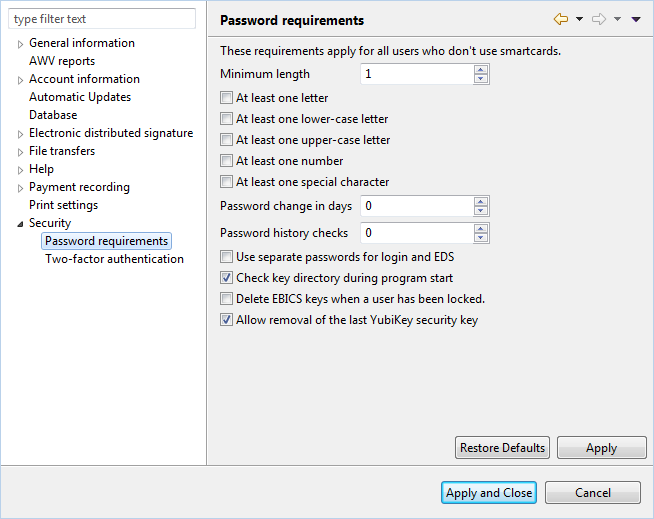
Figure: System settings - Password requirements
There are no preferences for password requirements.
This page is intended to set requirements that all users of the program must follow the next time they change their password. Passwords currently in use do not have to meet the changed requirements. The password requirements do not apply to the use of smart cards. Because of its significant impact, this page can only be edited by users with administrator rights.
This field and the checkboxes below are used to set the required password structure. When changing the password, a hint is displayed if the new password does not meet one or more requirements. If you set requirements here that are lower than the default settings, you must confirm this explicitly.
Enter here the number of days after which the password expires and a new one must be assigned. Zero means that the password never expires.
Here you can define how often a new password must be assigned before an previously used password can be taken again. Zero means that old passwords are not checked.
Here you can set how many times a user can enter his password incorrectly before he is locked. All incorrect entries up to the next correct entry count as failed attempt. After each incorrect attempt, the user is shown the number of attempts remaining. The value 1 means that no failed attempts are allowed. In the user administration, an administrator can unlock a locked user who has recovered his password. This option is not provided if there is no other administrator, in a single-user installation, or if the user has genuinely forgotten his password. In this case, all bank connections must be reset and reinitialized. The user can initiate this himself and assign a new password on the next program start after the first reset has been received.
If this option is set, users can assign separate passwords for login and electronic signature. For this, there is then an additional button in the dialog window Security. In the default setting this checkbox is not set. If you click it, you are advised in another window that this setting can only be made once and then cannot be undone. After confirmation the box is checked, after a click on Apply it is grayed out and cannot be changed anymore. In addition, the box for checking the key directory is grayed out, as a check cannot be performed on program start if separate passwords are used.
With this option, the program checks during startup, whether the key files are located in the storage location that is known to the program. If for example the keys are stored on a USB stick and this was not inserted before login, a dialog window is displayed, which prompts for the storage location. With this ckeckbox not set, this window is only displayed if for example, you have to enter your password during signing an order.
If a user enters an incorrect password too many times, he is locked. If this box is checked, his EBICS keys are also deleted from the set key directory. After that, unlocking in the user administration is no longer sufficient. Instead, the user must have all bank connections reset and re-initialize himself. In addition, the user can only log back into the program if he can either specify a different key directory as described above or if you temporarily disable the key directory check on program startup here.
If there is only one security key left for two-factor authentication, it can only be removed if this checkbox is set.
Figure: System settings - Password requirements